
Manage voicemail
Easily access and manage your Fidium voicemail from anywhere
Accessing your voicemail from your own phone
- Dial *86
- Enter voicemail password + #
- Press 1 to listen to new messages
Listen for additional menu options after hearing a new message
NOTE: If you don’t want to enter a password each time, that feature can be set up through the Fidium Insider Portal. See below for further details.
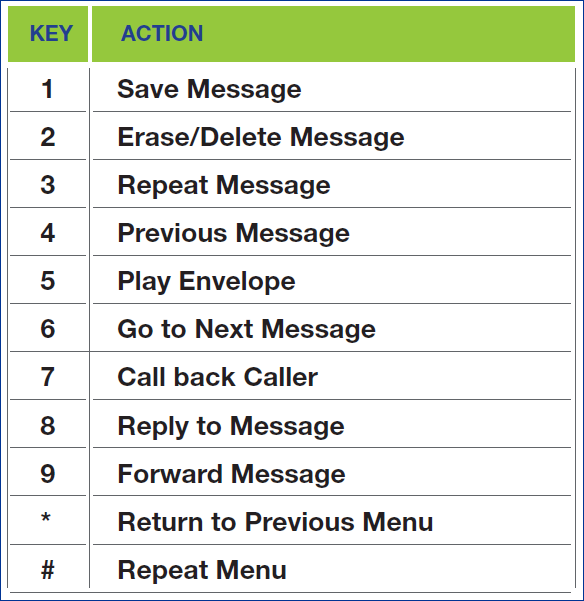
Accessing your voicemail from another phone
- Dial your phone number from an external phone
- When you hear your voicemail greeting, enter the * key
- When prompted, enter your voicemail password + #
- Press 1 to listen to new messages
Listen for additional menu options after hearing a new message
Change voicemail passcode (password) from your phone
- Access your voicemail box
- Press * to skip the main menu
- Press 9 to change your passcode (password)
- Enter new passcode + #
Enter new passcode + # to confirm password
NOTE: Passcode criteria is minimum of 6 numbers and you cannot use your current passcode. You will be required to change your passcode every 180 days.
Replying to a message
NOTE: Can only be done if person you are replying to has Fidium voicemail.
- Press 8 to reply to message after listening to it
- Press 1 to send reply
- Press 2 to change reply
- Press 3 to listen to current reply
- Press 6 to set or clear urgent indicator
- Press 7 to set or clear confidential indicator
- Press * to return to previous menu
Press # to repeat menu
Calling the sender
- Press 7 after listening to the message
NOTE: This capability will not work if the Voicemail system was not able to record the Caller ID information when the original Voicemail was received or if your phone is configured with call restrictions that prevent you from calling the originator’s number.
Forwarding a message
NOTE: Can only be done if the person you want to forward a message has Fidium voicemail.
- Press 9 to forward a message after listening to it
- Record introductory message and when finished press #
- Press 1 to forward
- Press 2 to change current introduction
- Press 3 to listen to current introduction
- Press 6 to set or clear urgent indicator
- Press 7 to clear confidential indicator (messages marked confidential cannot be forwarded)
- Press * to return to previous menu
- Press # to repeat menu
Recording your personal greetings
- Access your voicemail box
- Press 2 for Busy Greeting
- Press 1 to record new busy greeting
- Press 2 to listen to current busy greeting
- Press 3 to revert to system default busy greeting
- Press 3 for No Answer Greeting
- Press 1 to record no answer greeting
- Press 2 to listen to current no answer greeting
- Press 3 to revert to system default no answer greeting
- Press 4 to compose a message
- Press 7 to delete all messages
- Press 8 to record name
Additional voicemail settings
Read further on how to change your password and manage other voicemail settings in the Fidium Insider portal.